01. Overview
We are pleased to introduce Screenshot Mode, a feature that allows you to capture your special moments in-game.
Through Screenshot Mode, you can hide the basic in-game UI and use various visual effects and poses to create and preserve your own stunning scenes.
02. How to use
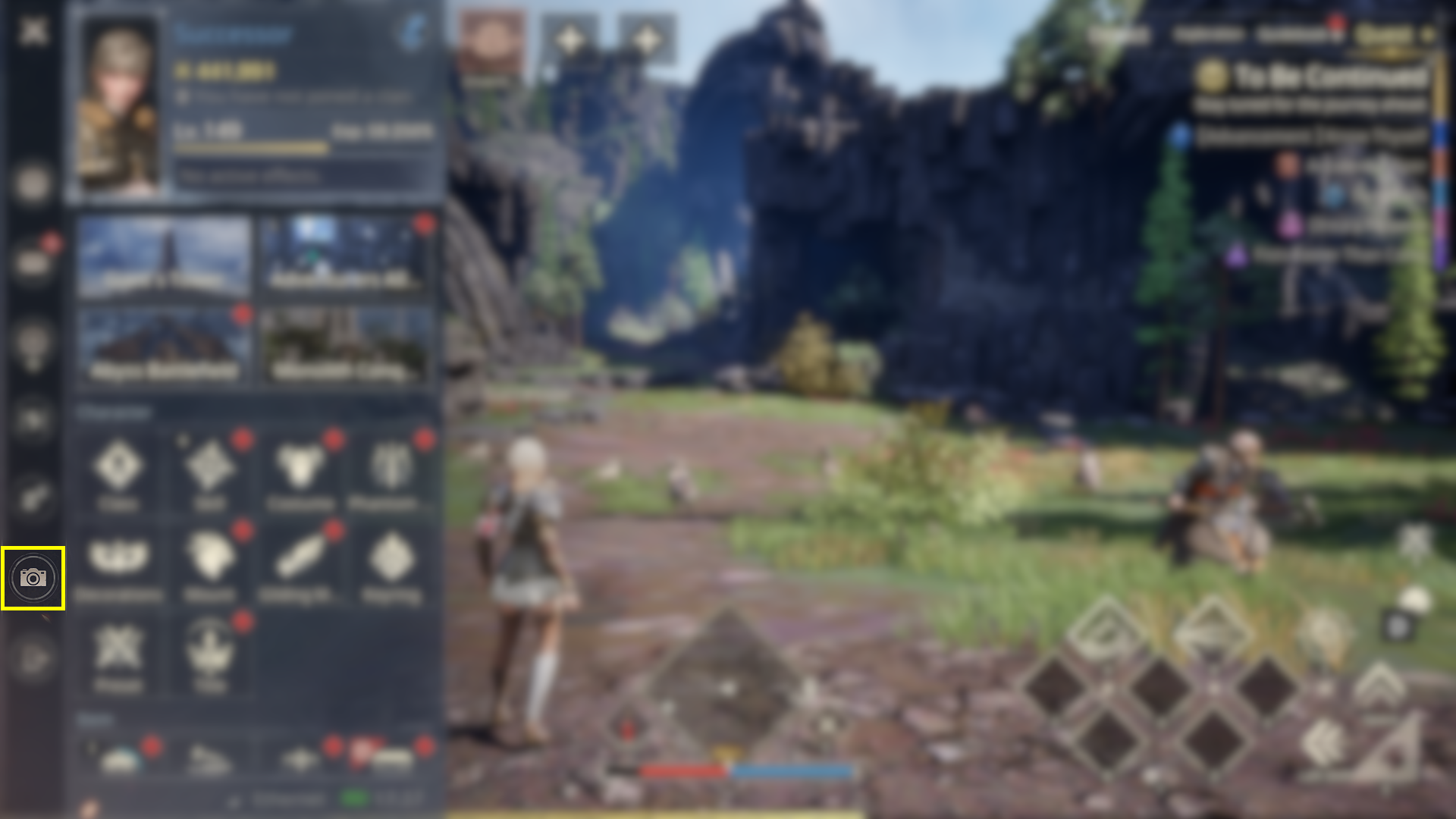
✧ Where is Screenshot Mode?
You can enter the dedicated Screenshot Mode screen via [Main Menu] → [Screenshot Mode] button.
✧ Where are you not allowed to use Screenshot Mode?
You cannot enter Screenshot Mode if your character is in the following states:
- During combat
- While mounted on a flying device (Gliding Mount etc.)
- While swimming
03. UI Guide
When entering Screenshot Mode, the game’s basic UI will be hidden, and a dedicated UI to assist with capturing will be displayed.
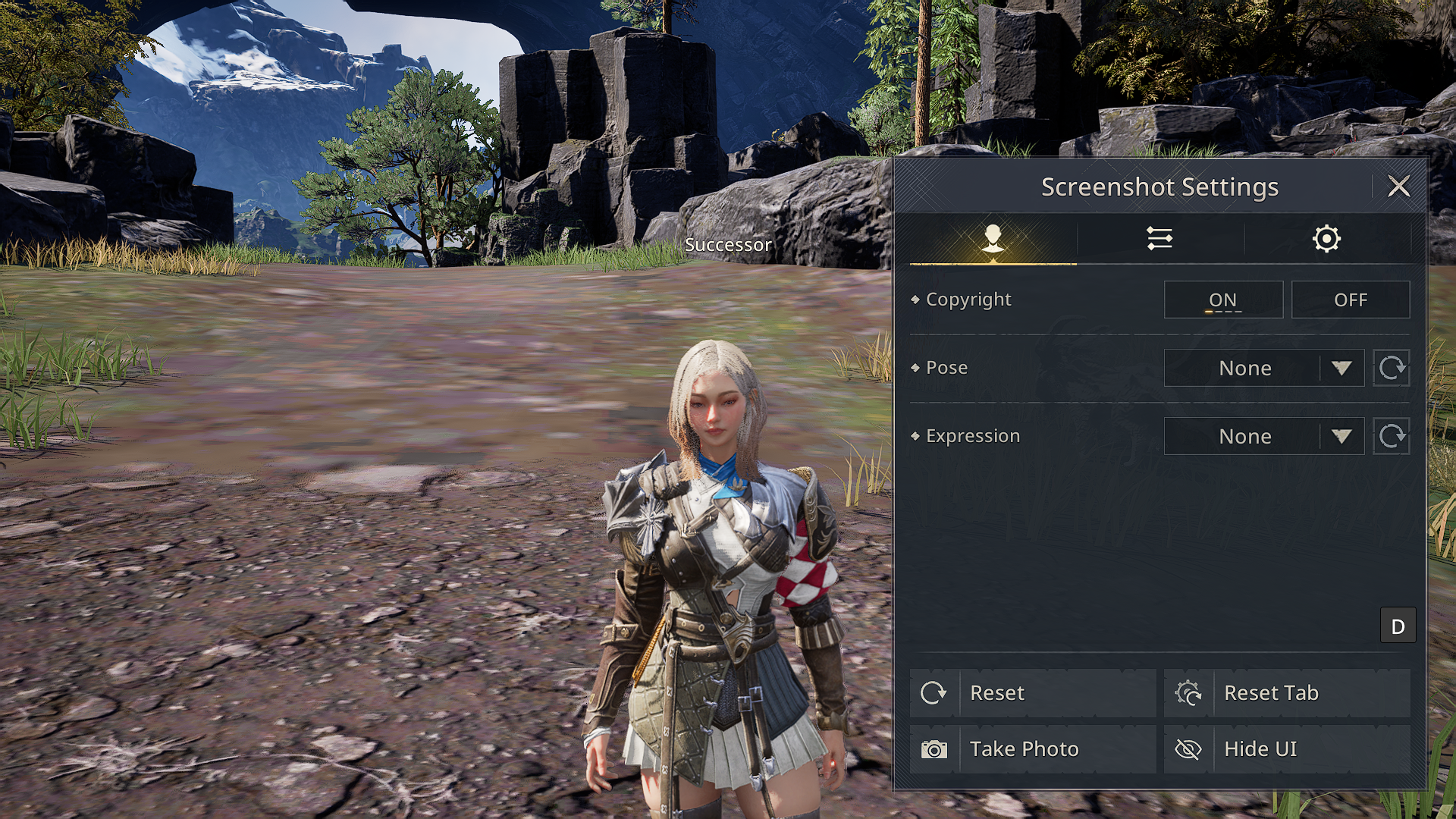
- Copyright: You can set whether the Architect logo is displayed.
- Pose/Expression: You can set a variety of poses and expressions for your character.
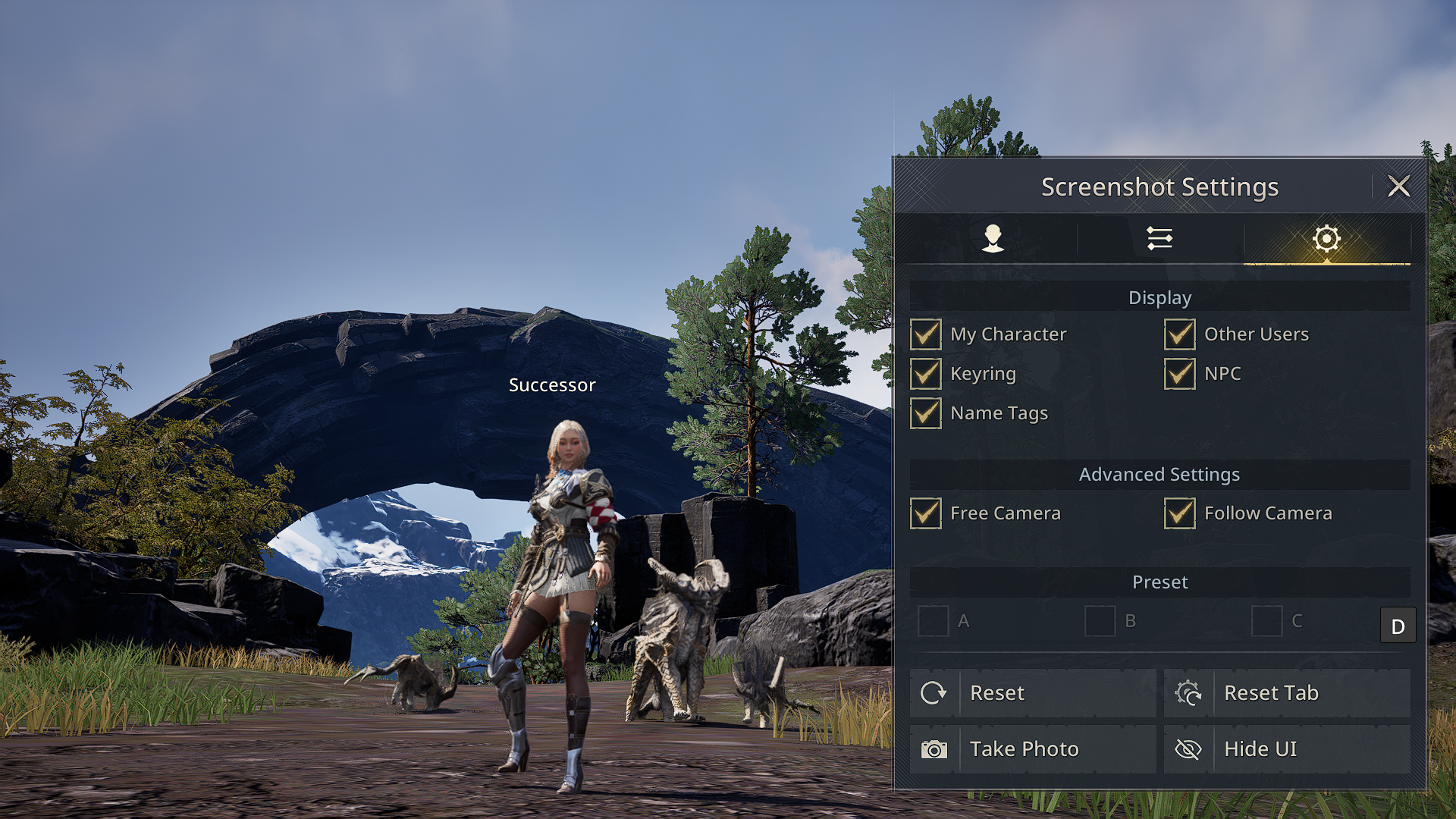
- Screen Display: You can freely configure whether each detailed item is shown on screen.
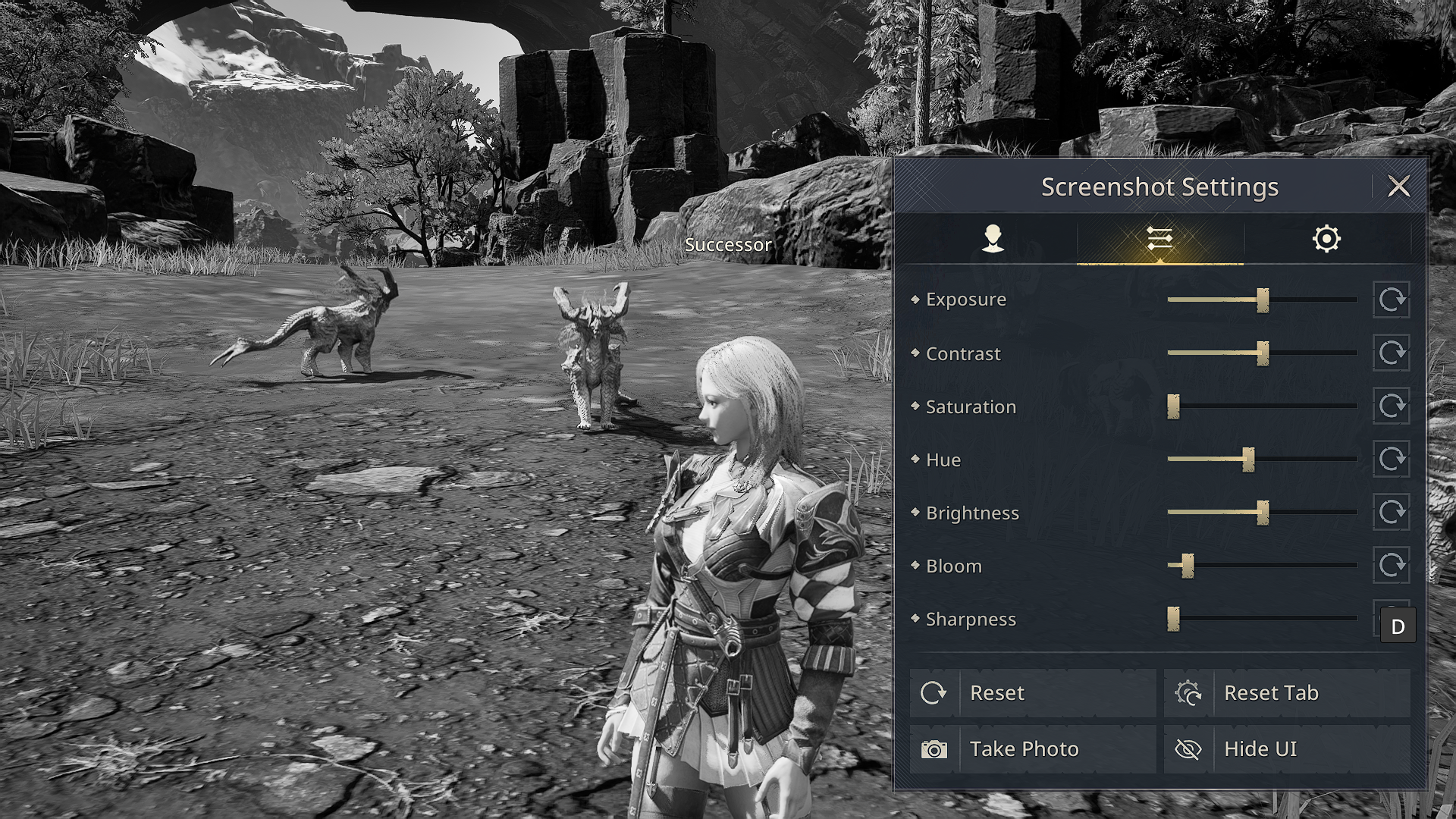
- Screen Effects: You can adjust detailed image attributes and filters such as exposure, contrast, and saturation to match your composition.
04. Camera Controls and Functions
- Free Camera Movement: You can change or fix the desired angle using directional keys and zoom in/out controls.
- Camera Follow: You can move your character while maintaining the set angle for shooting.
- Presets: Frequently used composition settings can be saved and loaded at any time.
05. Shooting and Save Directory
When you press the capture button with the set angle, the screenshot will be saved, and depending on your device environment, it will be stored in the following locations:
- Mobile: Gallery (Android) or Photos (iOS)
- PC: Screenshot folder within the game installation path