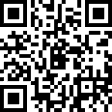
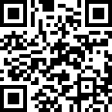
▼ DRIMAGE SYNC (Mobile Remote Play)
Even when you need to go out while gaming, leave your worries about your character's safety and growth behind for a moment. 'DRIMAGE SYNC' will be a reliable partner helping you remotely check and manage your game status anytime, anywhere.
02. How to Use Remote Play
✧ Step 1: Check Launcher Installation on PC
· Please check if the DRIMAGE LAUNCHER is installed on your PC.
· If it is not installed yet, please install the DRIMAGE LAUNCHER according to the method below.
▶ Launcher & Game Installation Guide [Go to]
✧ Step 2: How to Use Remote Play
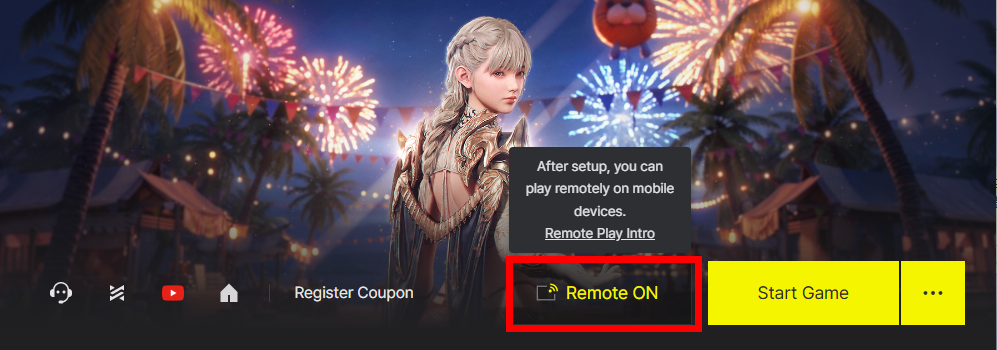
· After running DRIMAGE LAUNCHER on your PC, activate the function by changing the 'Enable Remote Play' setting located at the top of the launcher to [ON].
✧ Step 3: Mobile App Installation
- Search for and install the DRIMAGE SYNC official app through the app store (iOS/AOS) of your mobile device.
· Android: [▶ Google Play Download Link]
· iOS: [▶ App Strore Download Link]
· PC에서 확인하기: [▶ Official Website Download Page]
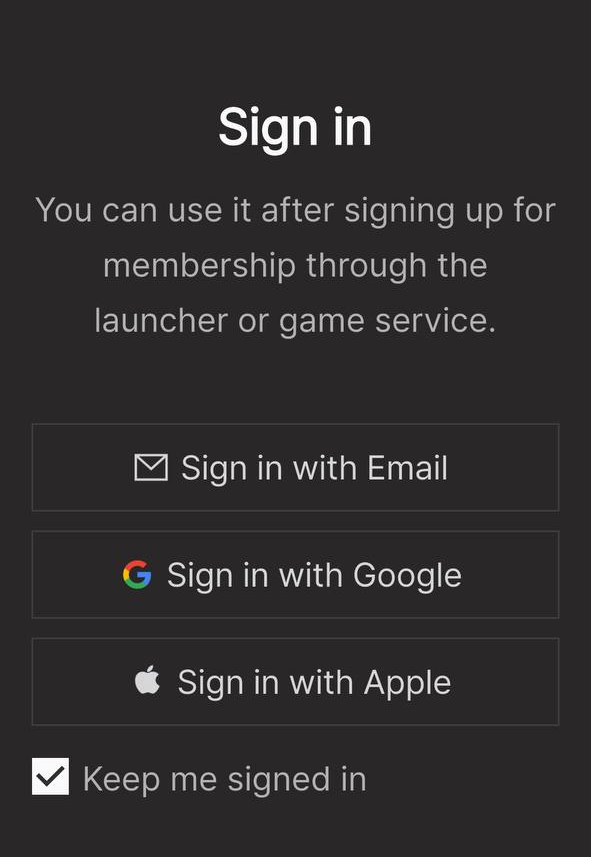
✧ Step 4: Log in with the Same Account
- Log in to the DRIMAGE SYNC app with the exact same account logged into the PC's DRIMAGE LAUNCHER.
✧ Step 5: Run Remote Play
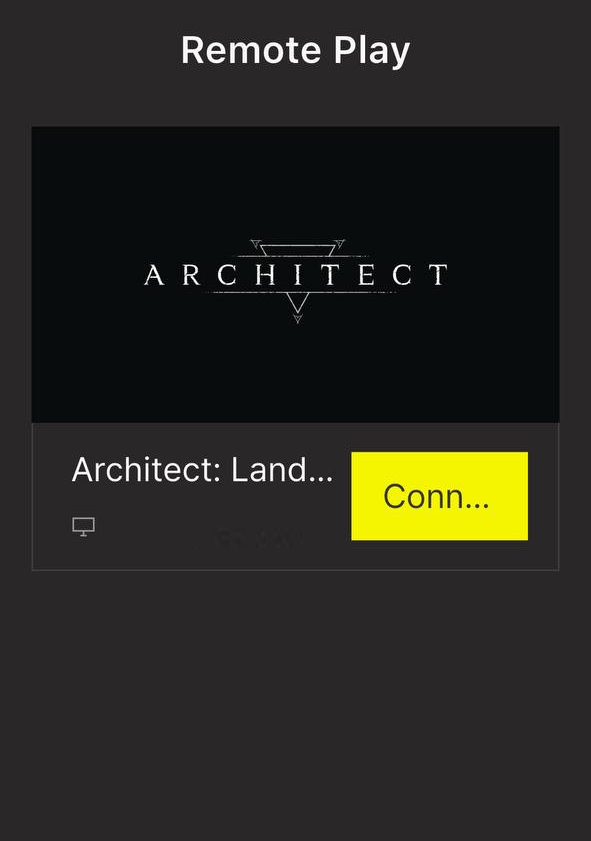
- After logging in, you can check the current PC connection status and use the function through the [Remote Play] menu within the DRIMAGE SYNC app.
- Remote Play can only be used when the game is running through the DRIMAGE LAUNCHER on your PC.
✧ TIP. Major Uses for Remote Play
1. Checking Your Character Anytime, Anywhere
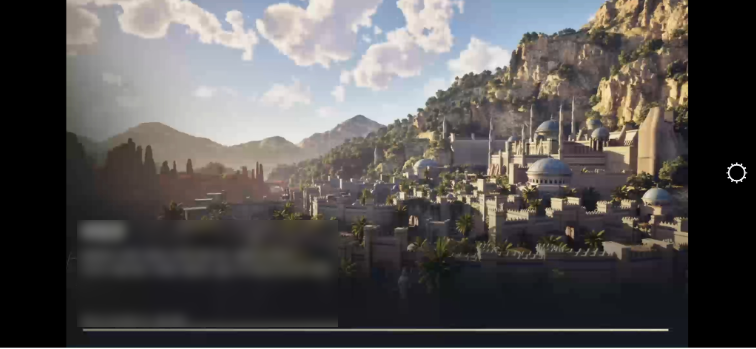
- When you start auto-hunting on your PC and go out, you can check your PC game screen with the DRIMAGE SYNC app and perform necessary operations.
2. Receiving Real-time Game Notifications
- If a significant event occurs, such as character death or acquiring a special item, the DRIMAGE SYNC app will immediately send a push notification to your smartphone.
- For smooth notification reception, make sure to set the notification permission for the DRIMAGE SYNC app to 'Allow' in your smartphone's settings.
▼ DRIMAGE SYNC Troubleshooting Guide
Please check the following items first when DRIMAGE SYNC Remote Play is not smooth.
✦ Q1. It says the PC is not connected when running the app
✧ A. Please check the 5 basic items below in order first.
1. Check PC Status: Please check if the game is running through DRIMAGE LAUNCHER.
2. Check Account Match: Please make sure that the account logged into the PC launcher and DRIMAGE SYNC app is the same.
3. Check Remote Play Settings: Check if 'Enable Remote Play' is activated as ['ON'] in the top menu of the DRIMAGE LAUNCHER on your PC.
4. Check Network Connection: Check if both the PC and the mobile device are connected to a stable internet connection.
✦ Q2. It connects, but the screen often stutters or the quality is very poor.
✧ A2. Remote Play quality is most affected by the network environment.
- Check Wi-Fi Signal: If the Wi-Fi signal your smartphone is connected to is weak, the connection may become unstable.
- Inspect PC Network Environment: If the PC is connected wirelessly (Wi-Fi), it is recommended to connect with a stable wired internet.
✦ Q3. Push notifications are not arriving.
✧ A3. You must check your smartphone's notification settings first.
- Mobile OS Notification Settings: In the smartphone's [Settings > Notifications > DRIMAGE SYNC App] menu, check if the notification permission for DRIMAGE SYNC is set to 'Allow'.
- Check Do Not Disturb/Focus Mode: If the smartphone is set to 'Do Not Disturb Mode' or 'Sleep Mode', notifications may not arrive.
✦ Q4. The app keeps crashing, or specific functions are not working.
✧ A4. First check if the app is the latest version, and most issues can be resolved by rebooting the device.
- App Update: If the DRIMAGE SYNC app you are using is not the latest version, please update it to the latest version in the App Store (iOS) or Google Play (AOS).
- Device Reboot: Turning the smartphone power completely off and back on can resolve issues such as temporary memory conflicts.
※ If the problem is still not resolved by the methods above
✧ If the problem is not resolved by the methods provided, please report the phenomenon through [1:1 Inquiry].
✧ Providing the following information together when inquiring will be a great help in identifying the cause more accurately and quickly.
- PC Specification Info (CPU, Graphics Card, OS, etc.)
- Mobile Device Model Name and OS Version (e.g., Galaxy S25, Android 16)
- Detailed description of the problem occurrence situation