01. Overview
As you journey through the world of Architect, the game screen presents a wealth of information at a glance and is packed with convenient features to support smooth gameplay. Let’s take a closer look at each element and its role. The more familiar you become with the interface, the faster and more comfortable your adventures will be.
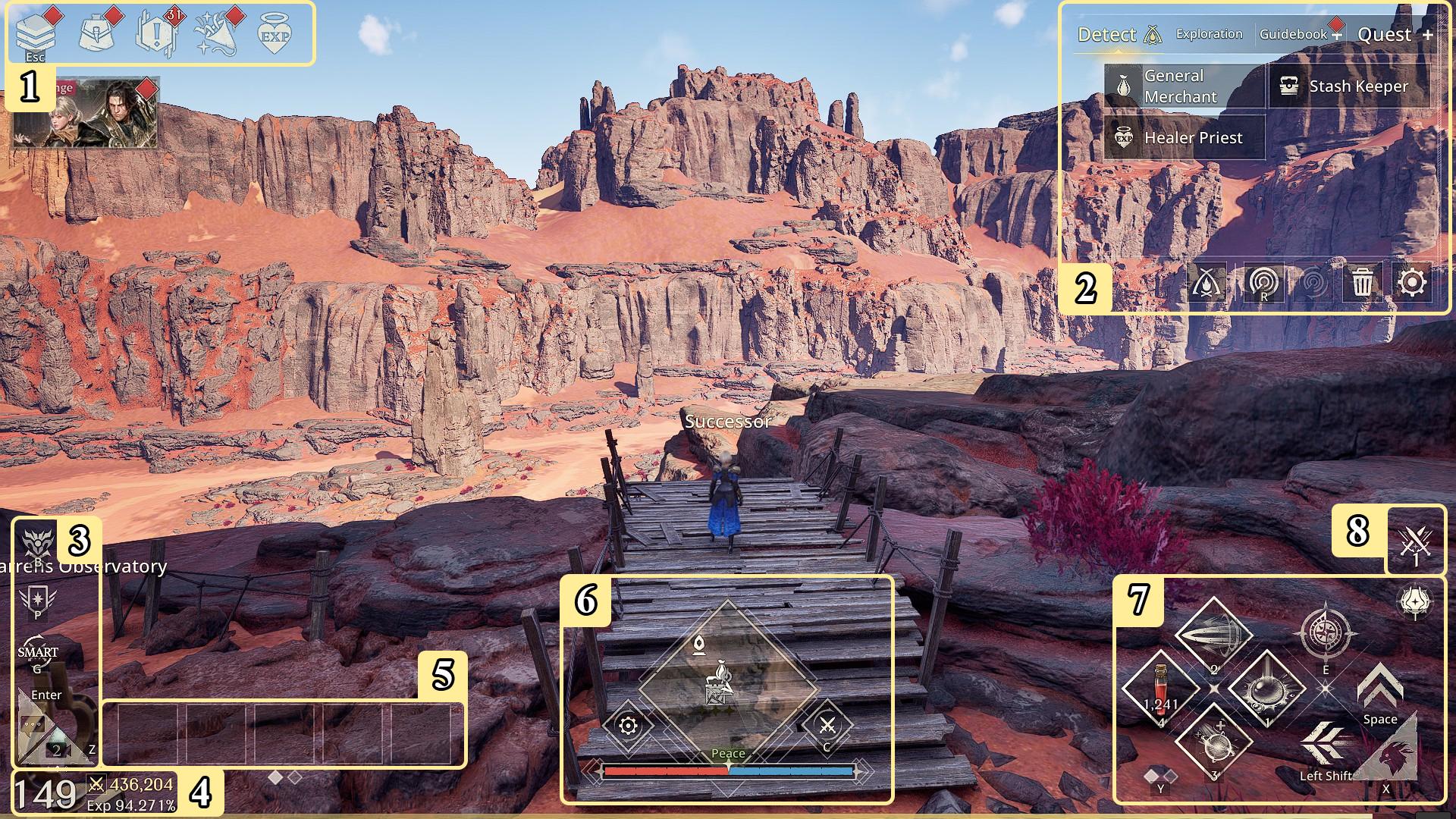
① Main Menu & Notifications
Top-left corner: access core functions like character info, inventory, skills, and settings. Notifications keep you updated with important news, while the event button lets you quickly check ongoing events and rewards.
② Assist Panel
On the right side: your reliable companion for exploration. It helps detect nearby players or monsters, shows available exploration elements, provides guide tips, and tracks quests with quick navigation to objectives.
③ Social & Convenience Features
Also on the right: boss status monitoring, clan squad management, advanced auto-battle settings (including auto-revive, auto-purchase, and auto-storage), chat functions, and camera mode adjustments.
④ Character Status Info
Bottom-left: displays your level, experience progress, and overall combat power.
⑤ Consumable Quick Slots
Register consumable items from your inventory for fast use. Toggle this feature on or off in settings to customize your screen layout.
⑥ Combat Settings & Convenience
Bottom-center: smart functions like auto-use of consumables and skills, world map access, and auto-battle with detailed configuration options.
⑦ Action & Skills
Bottom-right: core combat controls including skill quick slots (expandable from 4 to 7), basic attacks, jump, dash, mount riding, and stance switching (dealer or specialized stance, available after second advancement).
⑧ Preset Selection
Unlocked at level 45: set up to four presets for equipment and skills, allowing instant switching to suit different situations.
This structure ensures you can manage gameplay efficiently while keeping the adventure immersive and responsive.